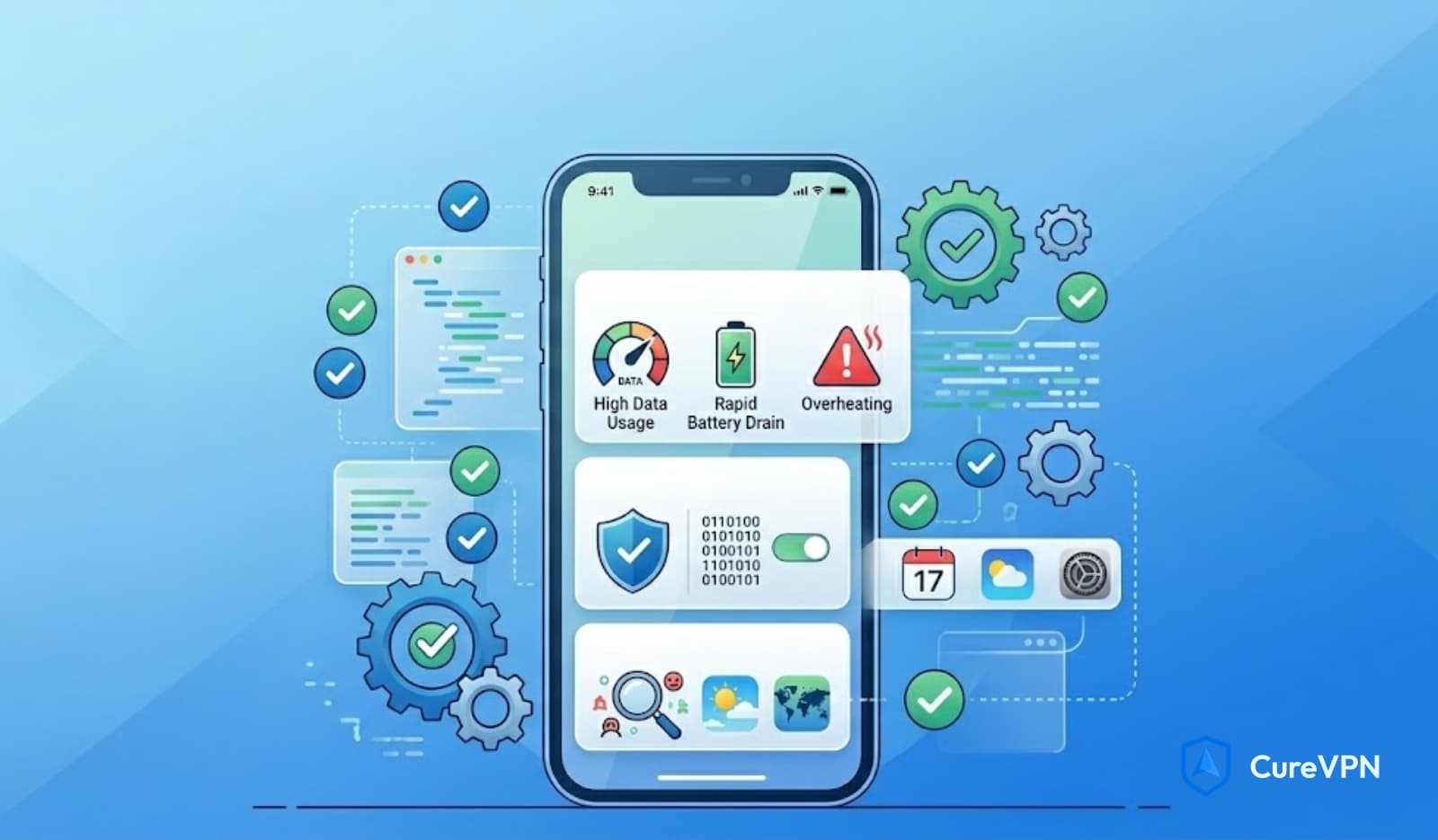

Apple devices are often praised for their strong security, but even iPhones aren’t completely immune to digital threats. If your phone starts lagging, overheating, or showing strange pop-ups, it might be more than just a glitch – you could be dealing with malware.
In this guide, we’ll show you how to detect malware on iPhone, identify warning signs, and remove threats without compromising your privacy.
Can iPhones Get Malware?
Although iPhones are less vulnerable than Android devices, they’re not invincible. iOS is built with advanced protections like app sandboxing, controlled app installations, and regular security updates. However, iPhone malware does exist — often through phishing attacks, malicious websites, or deceptive configuration profiles.
Traditional viruses may not infect iPhones, but other threats, such as spyware, adware, and stalkerware, can. Most iPhone malware is designed not to crash your phone, but to spy on you — tracking your location, reading messages, or rerouting traffic.
Signs of Malware on iPhone
Wondering how to detect malware on an iPhone? Start by checking for these signs:
- 🔋 Unusual battery drain even when not in use
- 🌡️ Overheating during light activity
- 🐢 Lagging or slow performance
- 🔔 Frequent pop-ups or redirects in Safari
- 📲 Apps you don’t remember installing
- 📶 Sudden data spikes
These symptoms don’t guarantee malware – but if several appear after downloading something new, it’s a red flag.
How to Detect Malware on iPhone: Step-by-Step
iPhones don’t support traditional virus scanners, but you can still uncover hidden threats using these steps:
1. Restart Your iPhone
Many lightweight malware scripts run temporarily. A full restart can stop them before they dig in.
2. Review Installed Apps
Go to Settings > General > iPhone Storage
Look for apps you don’t recognize or haven’t used. Delete anything suspicious — especially those without developer info or icons.
3. Clear Safari Data
Malware may hide in your browser cache.
Go to Settings > Safari > Clear History and Website Data
You can also temporarily disable JavaScript if pop-ups persist.
4. Remove Unknown Configuration Profiles
Malware can enter via hidden profiles.
Check Settings > General > VPN & Device Management and remove any unrecognized entries.
5. Install the Latest iOS Update
Apple releases frequent security patches.
Go to Settings > General > Software Update and apply the latest version.
How to Remove Malware from iPhone
If you confirm infection, follow these steps:
📌 Erase All Content and Settings
Go to Settings > General > Transfer or Reset iPhone > Erase All Content and Settings
This will wipe your device clean. Back up your data first — but only trusted data, not from a possibly infected backup.
🔁 Restore From a Clean Backup
Avoid restoring the most recent backup unless you’re sure it’s safe. Better yet, start fresh and reinstall only trusted apps.
How to Prevent Malware on iPhone
Prevention is your best defense. Follow these tips:
- ✅ Only install apps from the official App Store
- 🚫 Don’t jailbreak your device
- 📩 Avoid clicking on unknown links or attachments
- 🔒 Use a quality VPN solution – especially one that hides metadata
- 🛡️ Consider decentralized VPNs like RedGuard VPN for network-level privacy
Why Antivirus Isn’t Enough on iPhone
Antivirus software isn’t designed to catch phishing attempts or metadata leaks. That’s where privacy tools like RedGuard VPN stand out. Unlike basic VPNs, RedGuard VPN protects your identity by encrypting traffic and shielding your device from surveillance — even from ISPs and app trackers.
Final Thoughts
Learning how to detect malware on iPhone is simple – and doesn’t require third-party antivirus apps. With iOS’s built-in tools and good digital hygiene, you can prevent, detect, and remove most threats effectively.
Malware protection isn’t just about removing bad apps. It’s about stopping surveillance at its source. If privacy matters to you, take the next step with tools designed to protect what antivirus can’t.